Object transparency Melon Editor – Creating a transparent effect for an object can add a dynamic visual element to your project. In the Melon Editor, this effect is commonly used to simulate shadows, watermarks, or the “dead” animation when a player’s character is hit by an enemy.
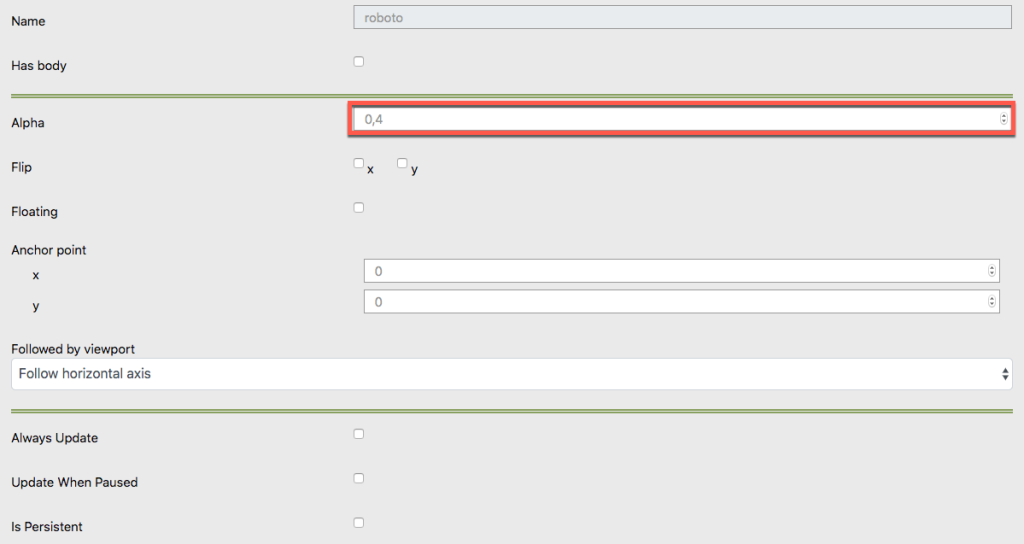
Steps to Set Transparency in Melon Editor
To make an object transparent in the Melon Editor, follow these steps:
- Open the Renderable Tab: Navigate to the “Renderable Tab” within the Melon Editor interface.
- Adjust Transparency Settings: Locate the object pane and click on the arrow parameter associated with transparency. This is often used to create effects such as a character fading out when they are defeated or when they collide with an enemy.
- Set Alpha Parameter: The transparency effect is controlled by the Alpha Parameter. This parameter ranges from 0 (completely transparent) to 1 (fully opaque). Adjust the Alpha Parameter to achieve the desired level of transparency for your object.
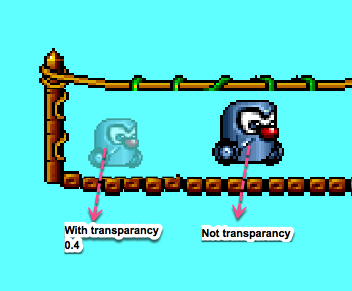
Practical Applications of Transparency
- Dead Animations: Use transparency to create a fading effect for characters or objects that are no longer active.
- Collision Effects: Apply transparency to objects that interact with enemies or other game elements to visually represent collisions or interactions.
By mastering these settings, you can enhance the visual appeal and functionality of your project in Melon Editor. Whether you are working on character animations or interactive effects, understanding how to adjust transparency can significantly improve your game’s visual dynamics.