If you’re looking to embark on a creative journey in game development, the Melon Editor is an excellent tool to kickstart your projects. In this tutorial, we’ll guide you through the process of starting a new project using Melon Editor, as well as opening existing projects. Whether you’re a seasoned developer or a beginner, Melon Editor’s user-friendly interface makes it easy to bring your game ideas to life.
Getting Started
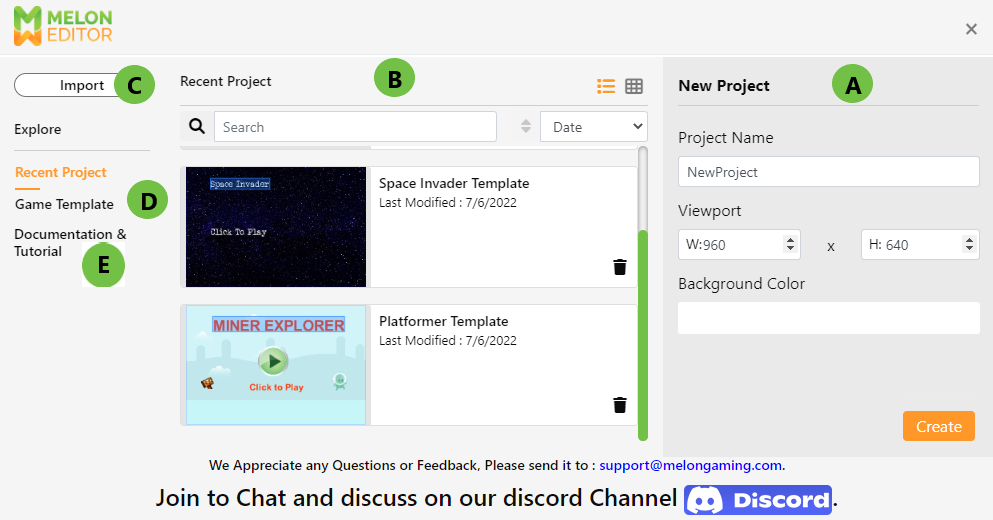
Launch Melon Editor: When you open the Melon Editor, you’ll be greeted by a startup page with a window dialog. This dialog provides several options to begin your journey:
- (A) Create Project: This option allows you to start a brand-new project from scratch.
- (B) List Project: Displays a list of projects you’ve already created.
- (C) Import Project: Use this option to import an existing project into Melon Editor.
- (D) Game Templates: Access a list of pre-made game templates available in the Marketplace.
- (E) Documentation & Tutorial: Click here to access the Melon Editor tutorial page for further guidance.
Creating a New Project:
- Click the “File” button.
- Select “My Project” to open an existing project or create a new one.
- A dialog form will appear, which is crucial for setting up your game’s identity (Point A in picture 1).
Fill in Project Details:
- In the dialog form, you’ll need to provide the following information:
- Project Name: Give your project a unique name.
- Viewport Width and Height: Define the initial dimensions of your game’s viewport.
- Background Color: Choose the background color for your game.
- In the dialog form, you’ll need to provide the following information:
Project Creation:
- Once you’ve filled in the required details, click the “Create” button.
- You’ll be directed to the Melon Editor dashboard, where your new project will be ready for development.
Opening Existing Projects
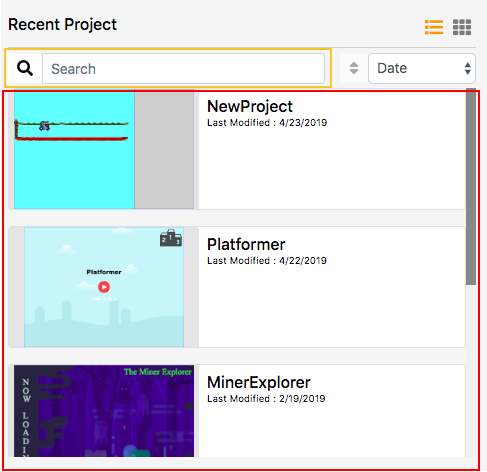
If you’ve previously worked on projects using Melon Editor, there’s no need to start from scratch. Melon Editor conveniently stores your projects for easy access.
Access Existing Projects:
- To open an existing project, click the “My Projects” button located in the File Menu.
- A sidebar will appear, displaying a list of your projects as shown in the red highlight in picture 1.
Open a Project:
- You can open an existing project in two ways:
- List View: Click on the project name in the sidebar to select and open it.
- Search: Use the search bar (highlighted in yellow) to quickly locate a specific project by name.
- You can open an existing project in two ways:
Accessing the Dashboard:
- Regardless of how you choose to open your existing project, you’ll be directed to the Melon Editor dashboard, ready to continue your work.
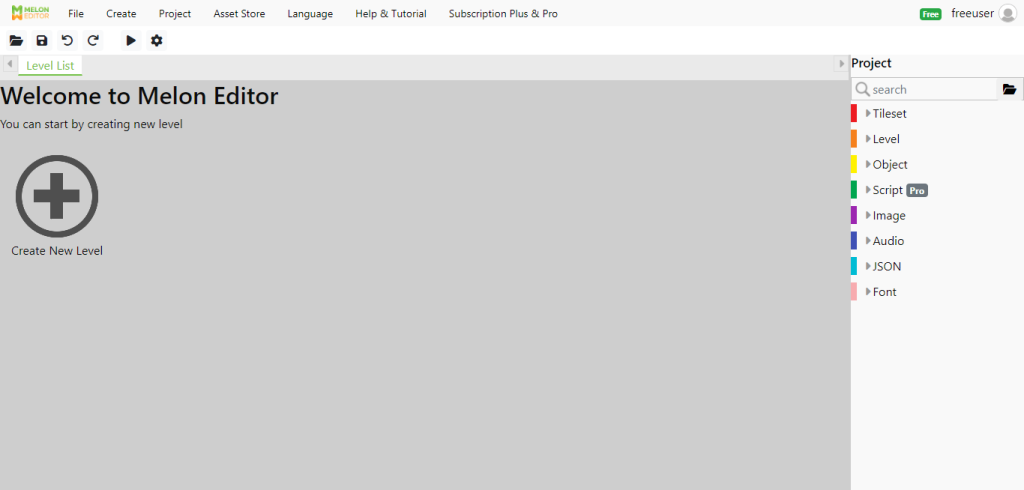
With these simple steps, you can start a new project or access your existing ones efficiently with Melon Editor. Now, it’s time to unleash your creativity and bring your game development ideas to life. Happy game-making!